
In today’s digital landscape, whether you are a content creator, web developer, student, or social media marketer, high-quality images are an absolute necessity. Whenever we need a visual, our fingers automatically type our query into google images. It is the world’s largest and most versatile visual search engine, offering endless inspiration and resources.
However, have you noticed that saving images from the internet is not as easy as it used to be? Many websites now disable the right-click function, images frequently save in the restrictive WebP format, or you find yourself wasting hours trying to pull multiple photos from a single webpage.
If you have been searching the internet for how to download google images from google without dealing with technical headaches, you are in exactly the right place. Today, we are going to dive deep into a revolutionary tool that will change your image downloading experience forever. This tool is called “Image from URL”. It does not just blindly save files; it extracts images from any link, provides a crystal-clear preview, and allows for a seamless download.
1. The Hidden Struggles of Direct Image Downloads
Before we look at the solution, let us understand why we need a dedicated tool in the first place. When we attempt a direct google images download using traditional methods, we usually run into a few frustrating roadblocks:
- Right-Click Disabled: Many website owners block the right-click menu to prevent users from easily copying their visual assets.
- The WebP Format Trap: To improve page loading speeds, Google and other sites often serve images in the WebP format. When you save these directly, they frequently refuse to open in standard editing software like Photoshop or Canva.
- Saving Low-Res Thumbnails: In a rush, it is easy to right-click and save directly from the search results page. This usually results in downloading a tiny, pixelated thumbnail rather than the original high-definition image.
- CSS Background Images: Some modern websites do not use standard image tags. Instead, they embed photos into the background using CSS code, making them nearly impossible for the average user to save.
The smartest, fastest, and most reliable solution to all these problems is the “Image from URL“ tool.
2. What is the “Image from URL” Tool?
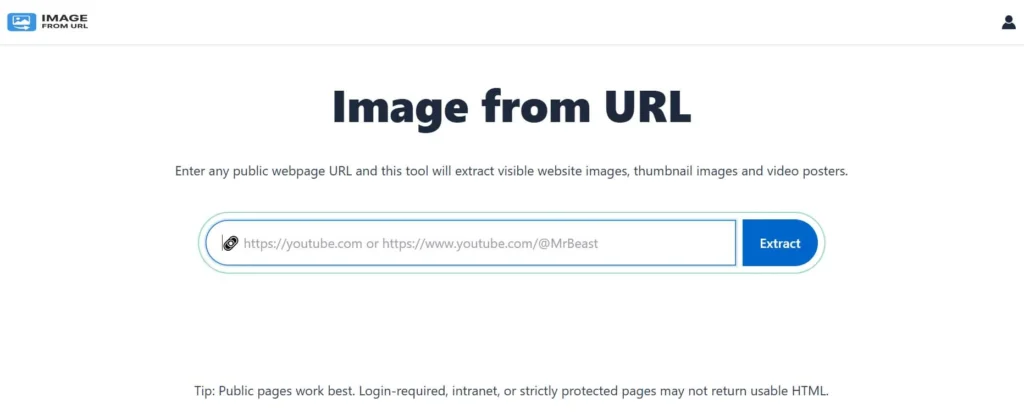
“Image from URL” is an incredibly powerful, user-friendly online utility designed to extract visuals from any webpage or direct image link. It is built specifically for users who want to grab photos quickly and efficiently without having to inspect website code or install clunky software.
The standout feature of this tool is its brilliant simplicity. You only need to copy the link (URL) of the webpage or the specific google images result, and paste it into the tool. The tool then works its magic behind the scenes: it scans the link, finds the hidden original images, displays a clear preview, and gives you a one-click download option.
Core Features of the Tool:
- Deep URL Extraction: It scans complex URLs to fetch the highest quality media files available on the page.
- Instant Image Preview: Before you download anything, you can see exactly what you are getting. This prevents you from accidentally saving tracking pixels, tiny icons, or the wrong file.
- One-Click Download: Once you review the preview, you can save the image directly to your device in its original resolution and a widely supported format.
- Bypasses Restrictions: It easily extracts images from sites where the normal “Save As” or right-click options are blocked.
- No Installation Required: Because it is entirely web-based, you do not need to download heavy software or browser extensions that slow down your computer.
3. How to Download Image from Google Images
Step-by-Step Guide Using the Extract Tool
If you are wondering how to put this tool to practical use, let us walk through the process. This step-by-step breakdown will show you exactly how to download images from google using the most modern and effective method available.
Step 1: Search for Your Desired Image
Open your browser and navigate to google images. Type your desired keyword into the search bar (for example: “HD Mountain Landscapes” or “Modern Office Desk Workspace”).
Step 2: Copy the Image or Webpage URL
Once you find an image you like, click on it to open the preview panel on the right side of your screen. You now have two choices:
- To get that specific photo, right-click on the image and select “Copy image address” (or “Copy image link”).
- To extract all images from the source website, click the link below the image to visit the actual webpage, then copy the full URL from your browser’s top address bar.
Step 3: Open the “Image from URL” Tool
Open a new tab in your browser and go to the “imagefromurl.com“ tool website. You will be greeted by a clean, minimalist interface featuring a prominent input box.
Step 4: Paste the URL and Extract
Paste the link you copied in Step 2 directly into the input field. Next, click the “Extract” or “Fetch Image” button right next to it.
Step 5: Review the Instant Preview
Within seconds, the tool will process the URL and display a high-quality preview of the image on your screen. If you pasted a full webpage URL, the tool might present a neat grid showing all the visual assets it found on that page.
Step 6: Download with One Click
Right below the preview, you will see a simple “Download” button. Click it, and the image will instantly save to your computer or mobile device in its original quality. This is the ultimate, hassle-free way to execute a google images download!
Also read: Best Image Downloader From URL – Supports All Websites
4. Who Benefits Most from This Tool?
While anyone can find value in the “Image from URL” utility, it acts as an absolute lifesaver for professionals in specific fields:
A. Bloggers and Content Writers
When crafting articles, writers constantly need reference images. Often, you might want to pull a specific chart or reference photo from a source website. Instead of dealing with screenshots that ruin the quality, bloggers can simply paste the URL and extract crisp, high-quality images instantly.
B. Web Developers and UI/UX Designers
Designers frequently need to recover logos, icons, or banner images from old client websites where the original hosting or source files are lost. The “Image from URL” tool allows developers to extract these assets directly without having to dig through complex source code.
C. E-commerce Sellers
If you are listing products on platforms like Amazon or Shopify and need the original product images from your supplier’s website, saving them one by one is incredibly tedious. This tool serves as the perfect shortcut to pull HD product images from e-commerce portals in bulk.
D. Digital Marketers
During competitor analysis, marketers need to study the ad creatives, landing page graphics, and visual strategies of rival companies. This tool provides them with a second-by-second preview and download option to securely save those creatives for review.
5. Traditional Method vs. “Image from URL” Tool
Let us look at a clear comparison to see why upgrading your download method makes a massive difference:
| Feature | Traditional Right-Click Method | “Image from URL” Tool |
| Extraction Speed | Slow (requires manual saving for each file) | Fast (fetches data instantly via URL) |
| Image Quality | Risk of saving low-resolution thumbnails | Always fetches the highest quality source file |
| Preview Option | None (you must open the file after saving) | Yes (clear preview provided before downloading) |
| Restricted Sites | Fails entirely if right-click is disabled | Effortlessly bypasses basic site restrictions |
| Format Control | Frequently forces annoying WebP formats | Extracts standard formats like JPG or PNG |
6. Pro Tips for Maximizing the Tool’s Efficiency
To get the absolute best results when using this tool, keep these quick tips in mind:
- Always Use the Direct Image Address: If you only need one specific photo, always right-click and copy the “Image Address” rather than the whole webpage URL. This reduces the tool’s processing time to almost zero.
- Leverage Bulk Extraction: If an article has ten fantastic photos you want to reference, paste the URL of the entire article. A high-quality extraction tool will display all media files on that page, allowing you to pick and choose exactly what you want from the preview grid.
- Rename Your Files Immediately: When the tool downloads the image, it might use a generic string of numbers for the file name. Rename it immediately with descriptive keywords (like “mountain-landscape-hd.jpg”) to keep your local computer organized and boost your own SEO if you plan to re-upload it.
7. A Crucial Reminder: Copyright and Ethical Usage
or
Why can’t download Images from Google
While the “Image from URL” tool grants you the power to extract a photo from practically any link, we must remain responsible digital citizens. It is vital to remember that not every picture you see on google images is free to use.
Whenever you perform a google images download for a public project, a commercial blog, or business use, you must verify the copyright status of that image.
- Always strive to extract and utilize images that are royalty-free or fall under a Creative Commons license.
- If you are using a creator’s specific photo, providing proper attribution and credit is not just good manners—it is often legally required.
- This tool brilliantly bypasses technical restrictions to make your life easier, but ensuring you have the legal permission to use the downloaded image is entirely up to you.
Conclusion
The importance of visual content on the internet is only going to grow, and having the right utilities in your workflow can save you countless hours of frustration. You no longer need to rely on outdated, tiresome methods when figuring out how to download images from google in mobile.
The “Image from URL” tool is the modern, fast, and secure way to pull photos from any webpage or search result. Its instant preview feature combined with a seamless one-click download mechanism puts it miles ahead of traditional saving methods. Whether you are dealing with blocked right-clicks, annoying file formats, or hidden code, this tool handles it all effortlessly.